Developing an agent
Don't have a paid plan? Join the Developer Program and provision a fully-featured sandbox for free.
This guide takes you through developing the response loop of an agent. The response loop is a cycle of receive input → reason → call tools → stream/render output → repeat if needed.
The agents.sessions.setStatus and agents.sessions.rename methods replace assistant.threads.setStatus and assistant.threads.setTitle, and we recommend them when building an agent. The legacy methods still work through a compatibility bridge, but they will be deprecated.
See Agent sessions for the full API and a migration checklist.
Enabling the agent feature
First things first: follow the Quickstart guide to create an app. Once completed, open the app settings, find the Agents feature in the sidebar, and enable it.
The assistant:write scope is needed for this, and thus is automatically added to your app when you enable the feature in the app settings. It also allows your agent to take advantage of suggested prompts and thread title customization. Remember to provide an agent overview in the setup too!
Subscribe to events
In the Event Subscriptions menu tab of the app settings, toggle on the Enable Events setting. Under Subscribe to bot events, subscribe to the app_home_opened, app_context_changed, and message.im events.
Handling initial user interaction
This section is split between the Agent and Assistant messaging experiences. The Assistant messaging experience is an older implementation of developing apps using soon-to-be-deprecated methods. Follow the Agent messaging experience below for new apps.
- Agent messaging experience
- Assistant messaging experience
To know when a user has actively opened a DM with your app, listen for the app_home_opened event and check that its tab property is "messages". To know when a user sends a message, listen for the message.im event.
Tracking what the user is viewing
To know what a user is currently looking at, subscribe to the app_context_changed event. Slack sends this event whenever the user's active context changes and the app is open, so your app can tailor its response to what the user has open, such as a channel, DM, thread, canvas, or list. The event payload includes an entities array, ordered by relevance, describing what the user is currently viewing.
"context": {
    "entities": [
        {
            "type": "slack#/types/channel_id",
            "value": "C123ABC456",
            "team_id": "T123ABC456"
        }
    ]
}
Once your app is subscribed to app_context_changed, Slack also includes the app_context in the message.im and app_home_opened events (called simply context in the latter). This lets you read the user's current context at the moment they send a message or open the DM, without tracking app_context_changed events separately.
If no entities are present, the app_context_changed event will provide an empty context object ("context": {}), while the message.im and app_home_opened events will not provide the context. The agent_view feature must also be enabled.
When the user first opens the container, Slack sends the assistant_thread_started event along with the context object. The context object is shown below:
    "context": {
      "channel_id": "C123ABC456",
      "team_id": "T123ABC456",
      "enterprise_id": "E123ABC456"
    }
Some applications have no use for the context object. Perhaps your app does, though! If so, first call the conversations.info method to see if your app has access to the channel, then proceed from there.
The assistant_thread_context_changed event is sent when a user opens a new channel while the container is open. This can be used to track the active context of a user in Slack.
Onboarding and welcome message
Send a call to action or suggest next steps when a user interacts with an agent for the very first time. Once this requirement is completed, optimize for repeat use and avoid repetitive prompts and 'getting started' types of messaging. This is important especially when it is necessary for the user to sign in, connect an account, agree to terms of service, or review a code of conduct.
Implementing user onboarding
We recommend using an interactive element or link if an action is needed or the user needs to visit a document or external URL.
For an app that requires the user complete a login flow to access all of the features, a first message could include a block that looks something like this:
{
    "type": "rich_text",
    "block_id": "Vrzsu",
    "elements": [
        {
            "type": "rich_text_quote",
            "elements": [
                {
                    "type": "text",
                    "text": "It looks like you're not logged. \n Sign in first."
                }
            ]
        }
    ]
},
{
    "type": "actions",
    "block_id": "actionblock789",
    "elements": [
        {
            "type": "button",
            "style": "primary",
            "text": {
                "type": "plain_text",
                "text": "Sign in"
            },
            "value": "sign_in_123"
        },
        {
            "type": "button",
            "style": "danger",
            "text": {
                "type": "plain_text",
                "text": "Ignore"
            }
        }
    ]
}
View this example in Block Kit Builder.
Setting suggested prompts
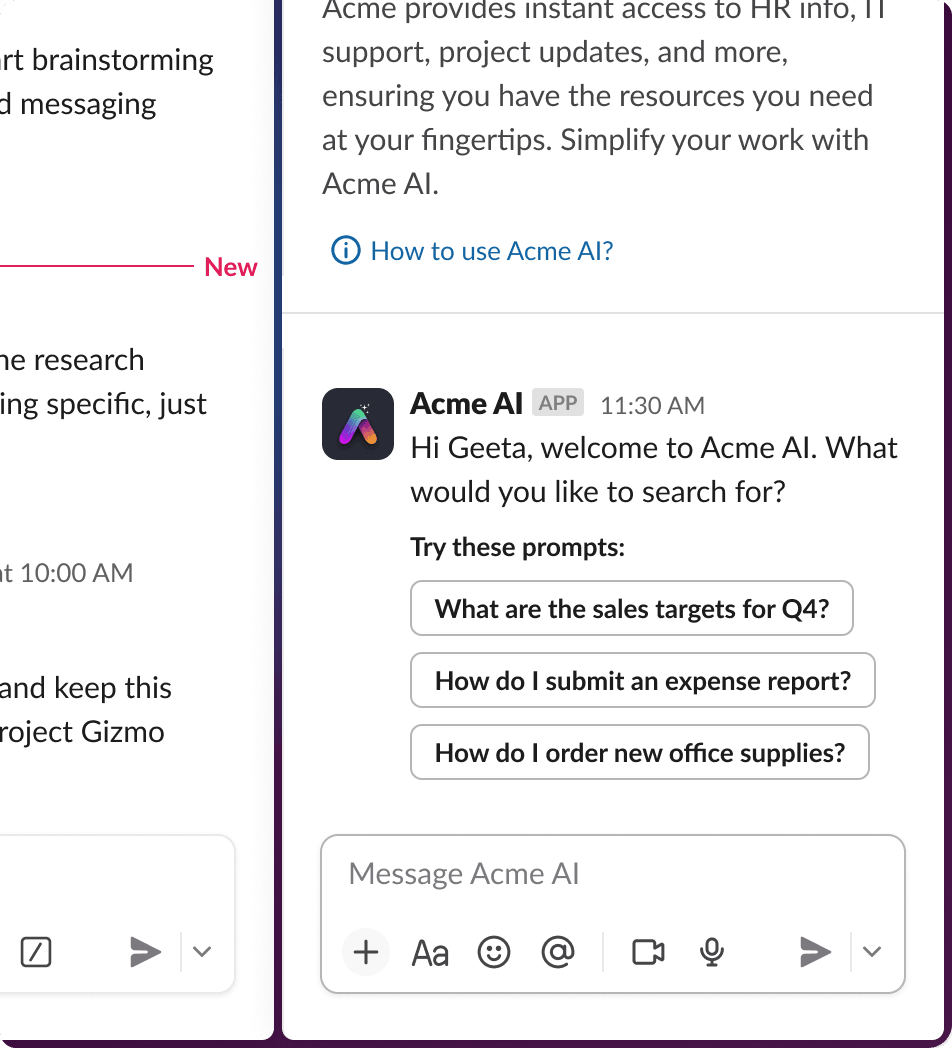
Present the user with suggested prompts using the assistant.threads.setSuggestedPrompts API method. Suggested prompts live at the top of the Messages tab. We recommend using the Bolt framework to handle the details for you.
- API call
- Bolt for Python
- Bolt for JS
Here is a sample request for the API without using the Bolt framework. Refer to the method docs or full example below for more implementation details.
{
   "channel_id": "D123ABC456",
   "thread_ts": "1724264405.531769",
   "title": "Welcome. What can I do for you?",
   "prompts": [
         {
            "title": "Generate ideas",
            "message": "Pretend you are a marketing associate and you need new ideas for an enterprise productivity feature. Generate 10 ideas for a new feature launch.",
          },
          {
            "title": "Explain what Slack stands for",
            "message": "What does Slack stand for?",
          },
          {
            "title": "Describe how AI works",
            "message": "How does artificial intelligence work?",
          },
   ]
}
Use the Bolt for Python utility to set predetermined suggested prompts for the user to choose from. Refer to the Bolt for Python docs for more details.
assistant = Assistant()

@assistant.thread_started
def start_assistant_thread(
    say: Say,
    get_thread_context: GetThreadContext,
    set_suggested_prompts: SetSuggestedPrompts,
    logger: logging.Logger,
):
    try:
        say("How can I help you?")

        prompts: List[Dict[str, str]] = [
            {
                "title": "Suggest names for my Slack app",
                "message": "Can you suggest a few names for my Slack app? The app helps my teammates better organize information and plan priorities and action items.",
            },
        ]

        thread_context = get_thread_context()
        if thread_context is not None and thread_context.channel_id is not None:
            summarize_channel = {
                "title": "Summarize the referred channel",
                "message": "Can you generate a brief summary of the referred channel?",
            }
            prompts.append(summarize_channel)

        set_suggested_prompts(prompts=prompts)
    except Exception as e:
        logger.exception(f"Failed to handle an assistant_thread_started event: {e}", e)
        say(f":warning: Something went wrong! ({e})")
Use the Bolt for JavaScript utility to set predetermined suggested prompts for the user to choose from. Refer to the Bolt for JavaScript docs for more details.
...
threadStarted: async ({ event, logger, say, setSuggestedPrompts, saveThreadContext }) => {
    const { context } = event.assistant_thread;

    try {

      await say('Hi, how can I help?');

      await saveThreadContext();

      /**
       * Provide the user up to 4 optional, preset prompts to choose from.
       *
       * The first `title` prop is an optional label above the prompts that
       * defaults to 'Try these prompts:' if not provided.
       */
      if (!context.channel_id) {
        await setSuggestedPrompts({
          title: 'Start with this suggested prompt:',
          prompts: [
            {
              title: 'This is a suggested prompt',
              message:
                'When a user clicks a prompt, the resulting prompt message text ' +
                'can be passed directly to your LLM for processing.\n\n' +
                'Assistant, please create some helpful prompts I can provide to ' +
                'my users.',
            },
          ],
        });
      }

      if (context.channel_id) {
        await setSuggestedPrompts({
          title: 'Perform an action based on the channel',
          prompts: [
            {
              title: 'Summarize channel',
              message: 'Assistant, please summarize the activity in this channel!',
            },
          ],
        });
      }
    } catch (e) {
      logger.error(e);
    }
  },
...
Listening for the message.im event
The user then will type a message or click on a prompt which triggers a message.im event. The event is the same whether the user clicked the suggested prompt or typed it manually. Users can message your app via the container or through your app's Messages tab.
After the user sends a new message, calling the agents.sessions.setStatus method with status: "processing" on that thread opens the thread to keep the conversation going. Only do this if you intend to reply in thread. (The legacy assistant.threads.setStatus method behaves the same way through the compatibility bridge.)
Your app can respond to the user directly or it can pass back the thread_ts parameter to continue in the same thread. In most situations, you will want to call the chat.postMessage method with the thread_ts parameter.
When your app receives the thread_ts parameter, you can retrieve the conversation by using thread_ts as the unique identifier. This is useful if your app stores the long-lived context or the state of a thread.
You can also fetch previous thread messages using the conversations.replies method and choose which other messages from the conversation to include in the LLM prompt or your app logic.
Note: @-mentions in channels can happen like they do today; whether you support this or not is up to you. You can engage with the user or ask them to use the container to converse with your app.
Providing a loading state
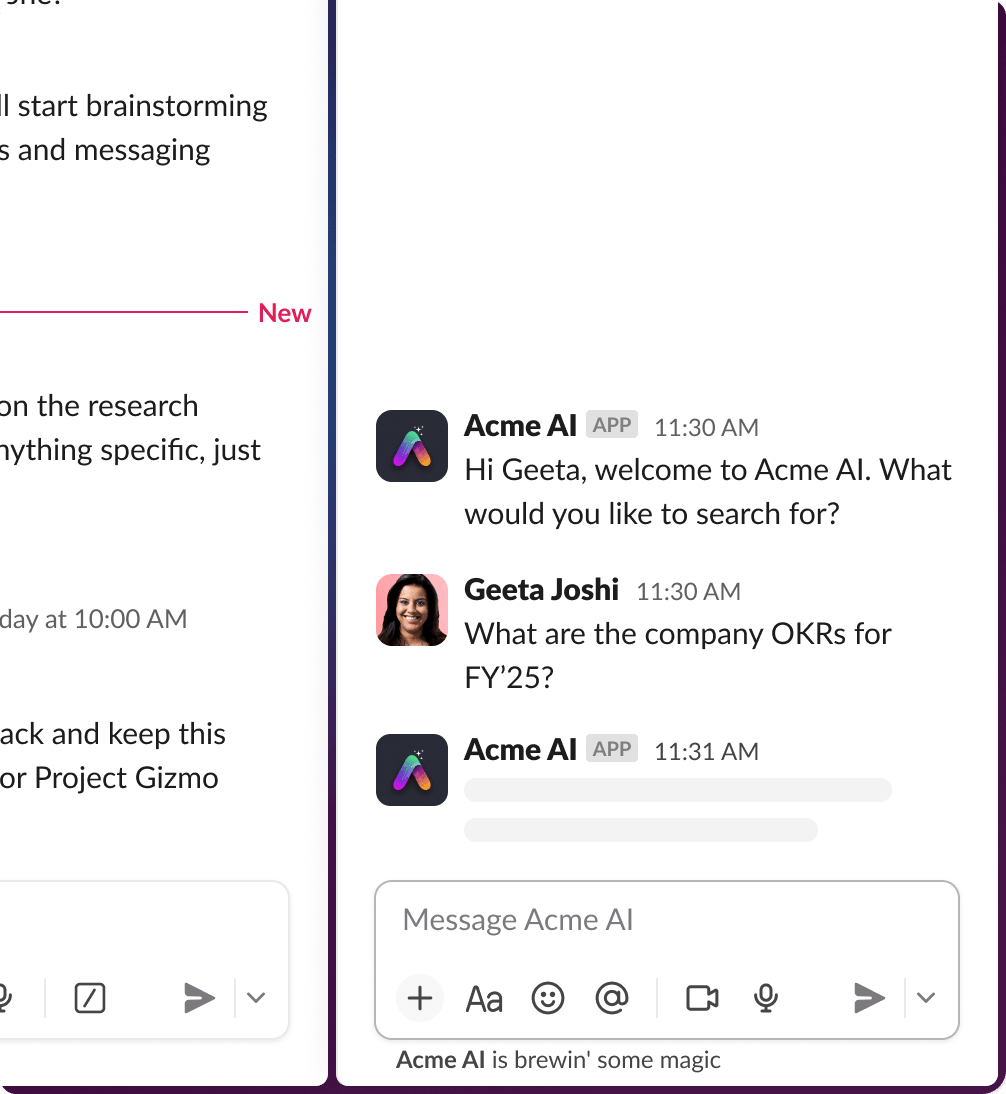
Your app should then call the agents.sessions.setStatus method with status: "processing" to display the loading indicator in the container. We recommend doing so immediately for the user's benefit.
Loading states indicate to your user that the app is working on a response. While a session is in processing, Slack shows a standard loading UX, along with a stop button if your app subscribes to the agent_session_stopped event. Custom loading messages are not supported by the agents.sessions.setStatus method.
We recommend using the Bolt framework to handle the details for you.
- API call
- Bolt for Python
- Bolt for JS
Here is a sample request for the agents.sessions.setStatus API method without using the Bolt frameworks. View the full example below for more detail.
{
   "status": "processing",
   "channel_id": "D324567865",
   "thread_ts": "1724264405.531769"
}
The legacy assistant.threads.setStatus method, which accepts a free-text status string and cycles through loading_messages, still works through the compatibility bridge. The Bolt utilities below wrap it.
Use the Bolt for Python setStatus utility to cycle through strings passed into a loading_messages array. Refer to the Bolt for Python docs for more details.
# This listener is invoked when the human user sends a reply in the assistant thread
@assistant.user_message
def respond_in_assistant_thread(
    client: WebClient,
    context: BoltContext,
    get_thread_context: GetThreadContext,
    logger: logging.Logger,
    payload: dict,
    say: Say,
    set_status: SetStatus,
):
    try:
        channel_id = payload["channel"]
        team_id = payload["team"]
        thread_ts = payload["thread_ts"]
        user_id = payload["user"]
        user_message = payload["text"]

	# Set your desired statuses here
        set_status(
            status="thinking...",
            loading_messages=[
                "Untangling the internet cables…",
                "Consulting the office goldfish…",
                "Convincing the AI to stop overthinking…",
            ],
        )
...
Use the Bolt for JavaScript setStatus utility to cycle through strings passed into a loading_messages array. Refer to the Bolt for JavaScript docs for more details.
...
const assistant = new Assistant({
  ...
  userMessage: async ({ client, context, logger, message, getThreadContext, say, setTitle, setStatus }) => {

    if (!('text' in message) || !('thread_ts' in message) || !message.text || !message.thread_ts) {
      return;
    }
    const { channel, thread_ts } = message;
    const { userId, teamId } = context;

    try {

      await setTitle(message.text);

      /**
       * Set the status of the Assistant to give the appearance of active processing.
       */
      await setStatus({
        status: 'thinking...',
        loading_messages: [
          'Teaching the hamsters to type faster…',
          'Untangling the internet cables…',
          'Consulting the office goldfish…',
          'Polishing up the response just for you…',
          'Convincing the AI to stop overthinking…',
        ],
      });
...
Responding to the user
Once your app finishes its work, call the agents.sessions.setStatus method with status: "active" to clear the loading indicator and mark the session ready for the next prompt.
With the agents.sessions.setStatus method, the loading UX does not disappear automatically when your app posts a message. Set status: "active" when you finish, or the session stays in processing until it times out after one hour. (The legacy assistant.threads.setStatus method, cleared by passing an empty status string, still clears automatically through the compatibility bridge.)
Formulate and send a response, using text streaming.
Text streaming
Text streaming is handled by three different API methods: chat.startStream, chat.appendStream, and chat.stopStream. These allow the user to see the response from the LLM as a text stream, rather than a single block of text sent all at once, providing closer alignment with expected behavior from other major LLM tools.
When using text streaming, there are a couple of caveats to keep in mind. Blocks may be used in the chat.stopStream method, but not the chat.startStream or chat.appendStream method, in order to prevent having them broken up. Also, unfurling is disabled in streaming messages.
If you're a Python or JavaScript fan, our Bolt frameworks in those languages have a streamer utility to allow you to quickly implement the functionality of these API methods into your apps.
- API call
- Bolt for Python
- Bolt for JS
Below is a sample of these API method requests. Refer to the method docs linked above for more implementation details.
Initiate a new streaming method with the chat.startStream API method. Use task_display_mode to control how tasks appear:
{
  "channel": "D12345678",
  "thread_ts": "1503435956.000248",
  "task_display_mode": "plan",
  "chunks": [
    {
      "type": "markdown_text",
      "markdown_text": "Let me help you with that!"
    }
  ]
}
Append chunks progressively to an existing streaming message with the chat.appendStream API method:
{
  "channel": "D12345678",
  "message_ts": "1503435956.000247",
  "thread_ts": "1503435956.000248",
  "chunks": [
    {
      "type": "markdown_text",
      "markdown_text": "Here's what I found..."
    },
    {
      "type": "task_update",
      "task": {
        "task_id": "task_1",
        "title": "Fetching weather data",
        "status": "complete",
        "output": {
          "type": "rich_text",
          "elements": [
            {
              "type": "rich_text_section",
              "elements": [
                {
                  "type": "text",
                  "text": "Found weather data from 1 source"
                }
              ]
            }
          ]
        },
        "sources": [
          {
            "type": "url",
            "url": "https://weather.com/",
            "text": "weather.com"
          }
        ]
      }
    }
  ]
}
Close the stream with the chat.stopStream API method:
{
  "channel": "D12345678",
  "message_ts": "1503435956.000247",
  "thread_ts": "1503435956.000248",
  "chunks": [
    {
      "type": "markdown_text",
      "markdown_text": "Hope this helps!"
    }
  ]
}
Use the Bolt for Python say_stream utility to streamline (pun intended) all three API methods for streaming your app's messages. Refer to the Bolt for Python docs for more details.
from slack_bolt import SayStream

def handle_message(say_stream: SayStream):
    """Stream a response to a message."""
    streamer = say_stream()
    streamer.append(markdown_text="Here's my response...")
    streamer.append(markdown_text="And here's more...")
    streamer.stop()
Use the Bolt for JavaScript say_stream utility to streamline (pun intended) all three API methods for streaming your app's messages. Refer to the Bolt for JavaScript docs for more details.
app.message('*', async ({ sayStream }) => {
  const stream = sayStream();
  await stream.append({ markdown_text: "Here's my response..." });
  await stream.append({ markdown_text: "And here's more..." });
  await stream.stop();
});
Display modes for streaming text
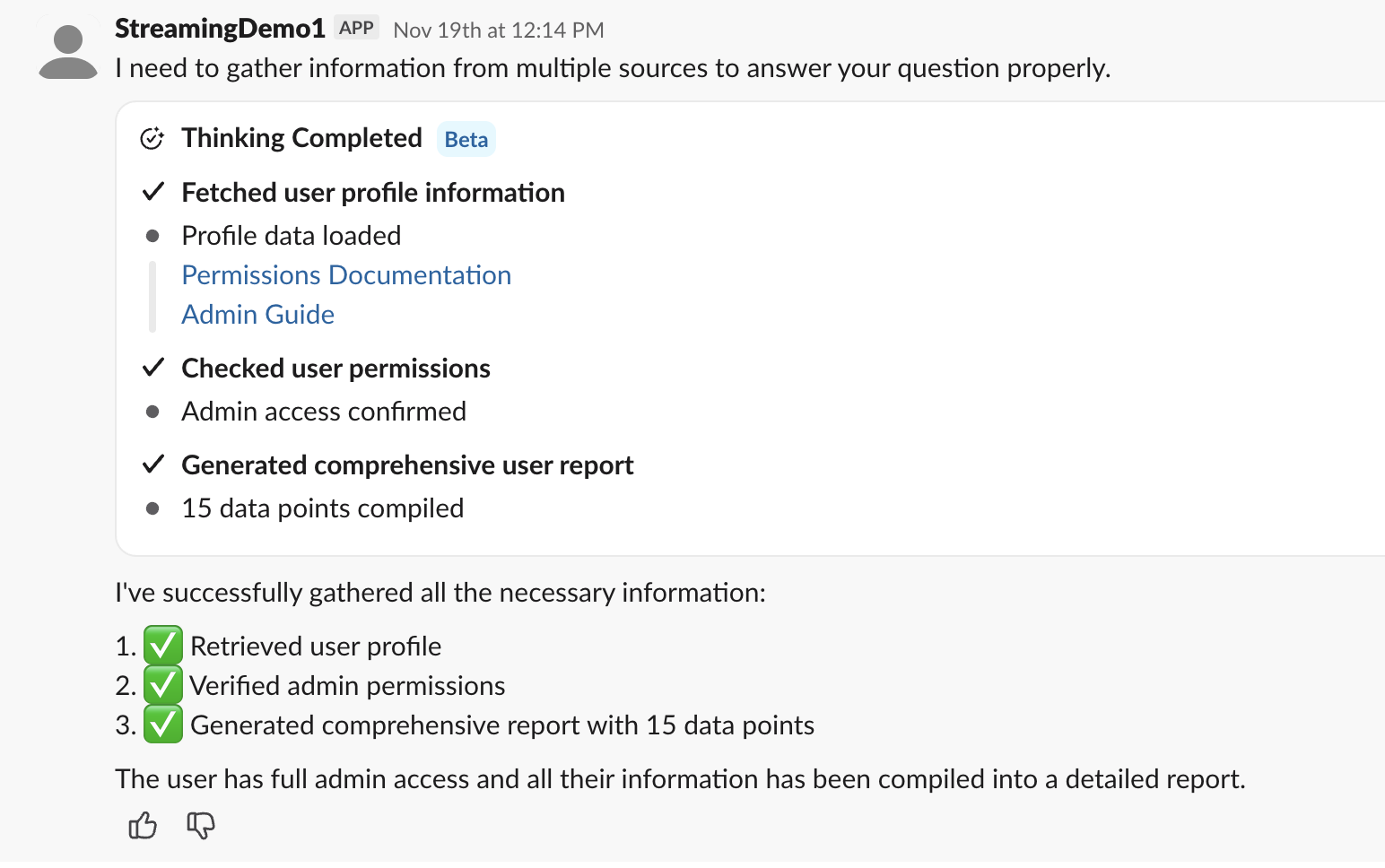
Use blocks from Block Kit to help visualize the response. Tasks can then be displayed using task card blocks along with the comprehensive plan display. Task cards display individual steps your agent is taking; a plan groups those tasks together.
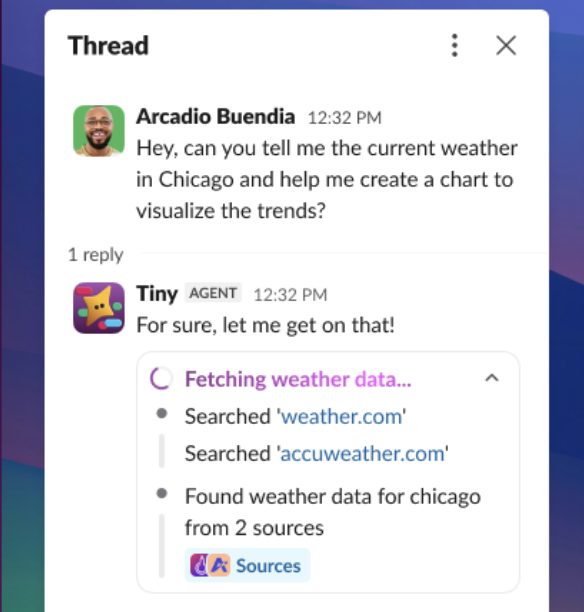
Apps can display a task update view for users to better understand what the app is doing. The task update display mode is best suited for short tasks with narration text. It can be in one of three different states: in_progress, completed, and error.
The plan display mode uses the plan block to present a list of tasks all together. It can be in one of four different states: pending, in_progress, completed, and error.
Feedback
With every message, provide an opportunity for feedback on the response with:
You can also subscribe to reaction_added events to collect feedback based on reactions.

A simple thumbs up/down reaction emoji will work, but consider opening a modal to collect more information when the response was graded poorly so that you can learn more about what the issue was.
- API call
- Bolt for Python
- Bolt for JS
Here is an example of using the context_actions and feedback_buttons blocks to create a thumbs up/thumbs down section you can include in your app messages. To take action on the feedback, you will have to define what you'd like to happen when the button is clicked using a block_actions payload.
{
  "blocks": [
    {
      "type": "context_actions",
      "elements": [
        {
          "type": "feedback_buttons",
          "action_id": "feedback_buttons_1",
          "positive_button": {
            "text": {
              "type": "plain_text",
              "text": "👍"
            },
            "value": "positive_feedback"
          },
          "negative_button": {
            "text": {
              "type": "plain_text",
              "text": "👎"
            },
            "value": "negative_feedback"
          }
        },
      ]
    }
  ]
}
View this in Block Kit Builder here.
Additionally, you could include the icon button in messages to allow for deleting them. That block looks like this:
{
  "blocks": [
    {
      "type": "context_actions",
      "elements": [
        {
          "type": "icon_button",
          "icon": "trash",
          "text": {
            "type": "plain_text",
            "text": "Delete"
          },
          "action_id": "delete_button",
          "value": "delete_item"
        }
      ]
    }
  ]
}
View this in Block Kit Builder here.
Use the Bolt for Python blocks utility to handle feedback interactions. Refer to the Bolt for Python docs for more details.
from typing import List
from slack_sdk.models.blocks import Block, ContextActionsBlock, FeedbackButtonsElement, FeedbackButtonObject


def create_feedback_block() -> List[Block]:
    """
    Create feedback block with thumbs up/down buttons

    Returns:
        Block Kit context_actions block
    """
    blocks: List[Block] = [
        ContextActionsBlock(
            elements=[
                FeedbackButtonsElement(
                    action_id="feedback",
                    positive_button=FeedbackButtonObject(
                        text="Good Response",
                        accessibility_label="Submit positive feedback on this response",
                        value="good-feedback",
                    ),
                    negative_button=FeedbackButtonObject(
                        text="Bad Response",
                        accessibility_label="Submit negative feedback on this response",
                        value="bad-feedback",
                    ),
                )
            ]
        )
    ]
    return blocks
Refer to the full docs to see the say_stream and handle_feedback utilities carry out the full feedback flow.
Use the Bolt for JavaScript blocks utility to handle feedback interactions. Refer to the Bolt for JavaScript docs for more details.
const feedbackBlock = {
  type: 'context_actions',
  elements: [
    {
      type: 'feedback_buttons',
      action_id: 'feedback',
      positive_button: {
        text: { type: 'plain_text', text: 'Good Response' },
        accessibility_label: 'Submit positive feedback on this response',
        value: 'good-feedback',
      },
      negative_button: {
        text: { type: 'plain_text', text: 'Bad Response' },
        accessibility_label: 'Submit negative feedback on this response',
        value: 'bad-feedback',
      },
    },
  ],
};
Refer to the full docs to see the sayStream and feedback utilities carry out the full feedback flow.
App threads
Slack will automatically group your app conversations into threads, shown in a timeline above the composer in the Messages tab. You can set the title of these threads using the agents.sessions.rename API method, or use the Bolt framework utility to handle the details. The title shows in the reply bar of an individual message. When viewing the thread, the title shows in the header.
When a user renames a session themselves, your app receives an agent_session_title_changed event so you can keep titles in sync. The legacy assistant.threads.setTitle method still works through the compatibility bridge, and the Bolt setTitle utilities below wrap it.
- API call
- Bolt for Python
- Bolt for JS
Here is a sample request for the API without using the Bolt framework. Refer to the method docs for more implementation details.
{
   "title": "Holidays this year",
   "channel_id": "D123ABC456",
   "thread_ts": "1786543.345678"
}
Use the Bolt for Python setTitle utility to set the title of the app thread. Refer to the Bolt for Python docs for more details.
assistant = Assistant()

@assistant.thread_started
def start_assistant_thread(
    say: Say,
    get_thread_context: GetThreadContext,
    set_suggested_prompts: SetSuggestedPrompts,
    logger: logging.Logger,
):
    try:
        say("How can I help you?")

        prompts: List[Dict[str, str]] = [
            {
                # Set the thread title here
                "title": "Suggest names for my Slack app",
                "message": "Can you suggest a few names for my Slack app? The app helps my teammates better organize information and plan action items.",
            },
        ]

        thread_context = get_thread_context()
        if thread_context is not None and thread_context.channel_id is not None:
            summarize_channel = {
                # Set the thread title here
                "title": "Summarize the referred channel",
                "message": "Can you generate a brief summary of the referred channel?",
            }
            prompts.append(summarize_channel)

        set_suggested_prompts(prompts=prompts)
    except Exception as e:
        logger.exception(f"Failed to handle an assistant_thread_started event: {e}", e)
        say(f":warning: Something went wrong! ({e})")
Use the Bolt for JavaScript setTitle utility to set the title of the app thread. Refer to the Bolt for JavaScript docs for more details.
...
threadStarted: async ({ event, logger, say, setSuggestedPrompts, saveThreadContext }) => {
    const { context } = event.assistant_thread;

    try {

      await say('Hi, how can I help?');

      await saveThreadContext();

      if (!context.channel_id) {
        await setSuggestedPrompts({
          // Set the thread title here
          title: 'Start with this suggested prompt:',
          prompts: [
            {
              title: 'This is a suggested prompt',
              message:
                'When a user clicks a prompt, the resulting prompt message text ' +
                'can be passed directly to your LLM for processing.\n\n' +
                'Assistant, please create some helpful prompts I can provide to ' +
                'my users.',
            },
          ],
        });
      }

      if (context.channel_id) {
        await setSuggestedPrompts({
          // Set the thread title here
          title: 'Perform an action based on the channel',
          prompts: [
            {
              title: 'Summarize channel',
              message: 'Assistant, please summarize the activity in this channel!',
            },
          ],
        });
      }
    } catch (e) {
      logger.error(e);
    }
  },
...
Messaging guidelines
Block Kit and interactivity
Provide interactive Block Kit elements, such as drop-down menus and buttons, to allow your user to interact with the app. Block Kit is not required, however; you can forgo interactivity and message the user via plain text and Slack markdown.
When updating longer messages sent to a user, only call the chat.update method once every 3 seconds with new content, otherwise your calls may hit the rate limit.
You can also set a section block element's expand property to true to allow your app to post long messages without the user needing to click 'see more' to see the full text of the message.
When not using Block Kit, use Slack mrkdwn for sending rich text. The formatting system of Slack is different from the common markup language used elsewhere on the web. It is typical for LLMs to default to use this common markdown syntax unless prompted otherwise, which will not render correctly when posted in Slack. Using the Markdown Block with standard markdown entered as the text input will ensure Slack translates the formatting correctly.
Content disclaimers
Add a disclaimer at the footer of app messages indicating that the response was generated by an LLM (large language model) and provide any disclaimers that may be appropriate or applicable to communicate with the user. An example of this might sound something like:
This content was generated by an LLM. Check generated content for vulnerabilities, and do not use to generate code that is visible outside of Slack. Review carefully before acting on the response; it may contain bias or hallucinations.
Implementing a content disclaimer
You can implement a disclaimer like this to each message by using a context block. Here is an example:
{
    "type": "context",
    "elements": [
        {
            "type": "mrkdwn",
            "text": "This tool uses AI to generate responses, so some information may be inaccurate."
        }
    ]
}
View this example in Block Kit Builder.
Media support
Where applicable, build apps that can handle a wide array of media types to provide the best user experience. Make it clear which media the app supports and gracefully fail when necessary. Refer to working with files for this guidance.
For example, if a user sends an image file and your app does not support receiving images, reply with a message like this:
It looks like the image didn't come through! 📸 Feel free to describe what you need help with, and I'll do my best to assist you. 😊
Sending notifications
When your app has the Agents feature toggled on, every DM with the user is a thread.
When sending a notification to a user outside of an existing thread:
- Use the
chat.postMessagemethod as normal, but look for thetsparameter in the response. - Call the
agents.sessions.renamemethod, sending the newtsparameter as thethread_tsparameter to set the title of the thread. This allows a user to see the new notification with a titled thread when they view the app's DM.
Slack has the Activity side rail tab to show new activity in a workspace. This area is optimized for users to quickly see and respond to notifications from your app.
References, citations, and annotations
Sources and attribution should be used and displayed consistently. There should be a concise way to reference internal messages and files from external sources. We recommend including these in each response that cited a source or used knowledge from a message or document to generate the output. Doing so builds trust with your app's users.
Implementing references
Use link formatting to cite sources inline and a context block to list references at the end of the message. To avoid clutter in the response, you may want to suppress unfurls if there are several sources.
Here is an example of citing a source in a context block that you could include at the end of a message:
{
    "type": "context",
    "elements": [
        {
            "type": "mrkdwn",
            "text": "Slack stands for 'Searchable Log of All Conversation and Knowledge.' <https://app.slack.com/slackhelp/en-US/115004071768|[1 Help Center]>"
        }
    ]
}
View this example in Block Kit Builder.
Graceful errors
Graceful failure means the agent treats its own partial progress as something worth preserving.
Agents make mistakes, they make things up, they omit important details and get stuck in endless loops of thinking. These situations can happen fairly often, and designing for them is a critical part of building a good agent experience.
When an agent experiences an error, it should:
- Save what it's accomplished
- Explain where it got stuck and why
- Give the user a clear set of options, including:
- provide the missing information
- skip the blocked step
- or take over manually from a known state.
As a last resort, clear the status so the app is not stuck 'thinking' indefinitely. It's important for the user to know when there are errors beyond their control and they need to try again or report a bug.
Something as simple as sending a message like this can go a long way for a user understanding why something isn't working:
Ope sorry! TeamworkDreamwork App isn't enabled for you.
Implementing graceful error handling
This will vary based on the types of errors you handle, but you can clear a loading state by calling the agents.sessions.setStatus method with status: "active" (or status: "suspended" if you need the user to intervene before continuing). With the legacy assistant.threads.setStatus method, send an empty string in the status field.
Full example
Here is a full code example of the response loop.
Complete pattern example
app.event('app_mention', async ({ event, client }) => {
  const channel = event.channel;
  const threadTs = event.thread_ts ?? event.ts;
  const userQuery = (event.text || '').trim();

  // 1. Set status immediately for instant feedback
  await client.agents.sessions.setStatus({
    channel_id: channel,
    thread_ts: threadTs,
    status: 'processing'
  });

  // 2. Open stream with plan mode
  const stream = await client.chat.startStream({
    channel,
    thread_ts: threadTs,
    task_display_mode: 'plan'
  });

  // 3. Send plan to user
  await client.chat.appendStream({
    channel,
    ts: stream.ts,
    chunks: [
      { type: 'task', id: 'search', text: 'Search workspace', status: 'in_progress' },
      { type: 'task', id: 'build', text: 'Build context', status: 'pending' },
      { type: 'task', id: 'compose', text: 'Compose response', status: 'pending' }
    ]
  });

  // 4. Search workspace for relevant context
  const searchResult = await client.assistant.search.context({
    query: userQuery,
    action_token: event.action_token,
    content_types: ['messages', 'files', 'channels'],
    channel_types: ['public_channel', 'private_channel'],
    include_context_messages: true,
    limit: 20
  });

  // 5. Update plan state for human in the loop
  await client.chat.appendStream({
    channel,
    ts: stream.ts,
    chunks: [
      { type: 'task', id: 'search', text: 'Search workspace', status: 'complete' },
      { type: 'task', id: 'build', text: 'Build context', status: 'in_progress' }
    ]
  });

  // 6. Optionally drill into the top result's thread for full context
  const topMatch = searchResult.results?.messages?.[0];
  let threadReplies = [];
  if (topMatch) {
    const repliesResult = await client.conversations.replies({
      channel: topMatch.channel_id,
      ts: topMatch.message_ts,
      limit: 100
    });
    threadReplies = repliesResult.messages || [];
  }

  // 7. Build structured state
  const state = {
    goal: userQuery,
    constraints: '',
    decisions: [],
    artifacts: [],
    sources: (searchResult.results?.messages || []).map((m) => ({
      text: m.content,
      link: m.permalink
    }))
  };

  // 8. Update plan for human in the loop
  await client.chat.appendStream({
    channel,
    ts: stream.ts,
    chunks: [
      { type: 'task', id: 'build', text: 'Build context', status: 'complete' },
      { type: 'task', id: 'compose', text: 'Compose response', status: 'in_progress' }
    ]
  });

  // 9. Build context block and call LLM
  const sourceContext = state.sources.map((s) => `• ${s.text} (${s.link})`).join('\n');
  const threadContext = threadReplies.length > 0
    ? `\nFull thread:\n${threadReplies.map((m) => m.text).join('\n')}`
    : '';
  const contextBlock = sourceContext + threadContext;

  const completion = await llm.responses.create({
    model: 'gpt-4.1-mini',
    input: `Goal: ${state.goal}\n\nRelevant context:\n${contextBlock}\n\nRespond with JSON only: { "summary": "one sentence", "findings": ["string"], "decisions": ["string"], "next_actions": ["string"] }`
  });

  const parsed = JSON.parse(completion.output_text);
  state.decisions = parsed.decisions || [];
  state.artifacts.push({ type: 'summary', text: parsed.summary });

  // 10. Map structured response to Block Kit
  const listSection = (label, items) => ({
    type: 'section',
    text: { type: 'mrkdwn', text: `*${label}*\n${items.map((i) => `• ${i}`).join('\n')}` }
  });

  const actions = [
    { type: 'button', text: { type: 'plain_text', text: 'Run again' }, action_id: 'run_again' },
    { type: 'button', text: { type: 'plain_text', text: 'Refine search' }, action_id: 'refine_search' },
    { type: 'button', text: { type: 'plain_text', text: 'Share summary' }, action_id: 'share_summary', style: 'primary' }
  ];

  const blocks = [{ type: 'header', text: { type: 'plain_text', text: parsed.summary } }];

  if (parsed.findings?.length > 0) blocks.push(listSection('Findings', parsed.findings));
  if (parsed.decisions?.length > 0) blocks.push(listSection('Decisions', parsed.decisions));
  if (parsed.next_actions?.length > 0) blocks.push(listSection('Next actions', parsed.next_actions));

  blocks.push({ type: 'divider' });

  if (state.sources.length > 0) {
    blocks.push({
      type: 'context',
      elements: state.sources.slice(0, 3).map((s) => ({ type: 'mrkdwn', text: `<${s.link}|Source>` }))
    });
  }

  blocks.push({ type: 'actions', elements: actions });

  await client.chat.stopStream({ channel, ts: stream.ts, text: parsed.summary, blocks });

  // Mark the session ready for the next prompt (clears the loading UX)
  await client.agents.sessions.setStatus({
    channel_id: channel,
    thread_ts: threadTs,
    status: 'active'
  });
});
On follow-up turns, pass the existing state object to the LLM and update individual fields as the conversation evolves — do not call assistant.search.context again unless the goal has changed.
Additional guidelines
Data retention
Do not store any Slack data you obtain. Instead, store metadata and pull in data in real time if needed.
Members only
Workspace guests are not permitted to access apps with the Agents feature enabled.
More ways to add AI to your app
Can't get enough AI in the agent experience? Any user input can be used as input for an LLM query, and the answer can be posted back in Slack. Take these three examples:
- Ask an LLM a question that was reacted to with a reacji. Learn how to do this in the Events API docs
- Initiate asking an LLM a question posed in a message from a message shortcut
- Start off an LLM query with a slash command
- Collect structured data in a modal, then use it in a query to an LLM
Remember to enable the Agents feature toggle to gain access to the assistant:write scope. The new agent sessions methods, agents.sessions.setStatus and agents.sessions.rename, require the chat:write scope.
Integrating with AI carries an inherent risk of prompt injection. Read more about the risk of data exfiltration and how to prevent it in the security docs.
Next steps
✨ Integrate the Slack MCP server to access Slack data and perform user-authorized actions in your app.
✨ Discover the various interaction surfaces your app can employ to interact with its users.
✨ Explore all of the surfaces on which your app can exist.