Surfaces
Surfaces are where users engage with your app. Slack offers several surfaces where users can access and interact with your app.
Some of these surfaces serve as entry points: places where a user's action can initially invoke your agent. Most surfaces can be built using Block Kit layout blocks and elements. Our guide to building block layouts will help you learn how. Canvases, on the other hand, use markdown for content formatting.
App Home
The App Home is a private, one-to-one space in Slack shared by a user and an app. The Home tab, a specific App Home view, is an optional ever-present space, retaining its content and state until the app chooses to update it.
Present each of your users with a unique Home tab just for them, always found in the same place.
Although not every app needs to have a Home tab, the 'always-on' nature of the space makes it an important surface for many Slack apps.
The App Home is not available for apps created with the Deno Slack SDK.
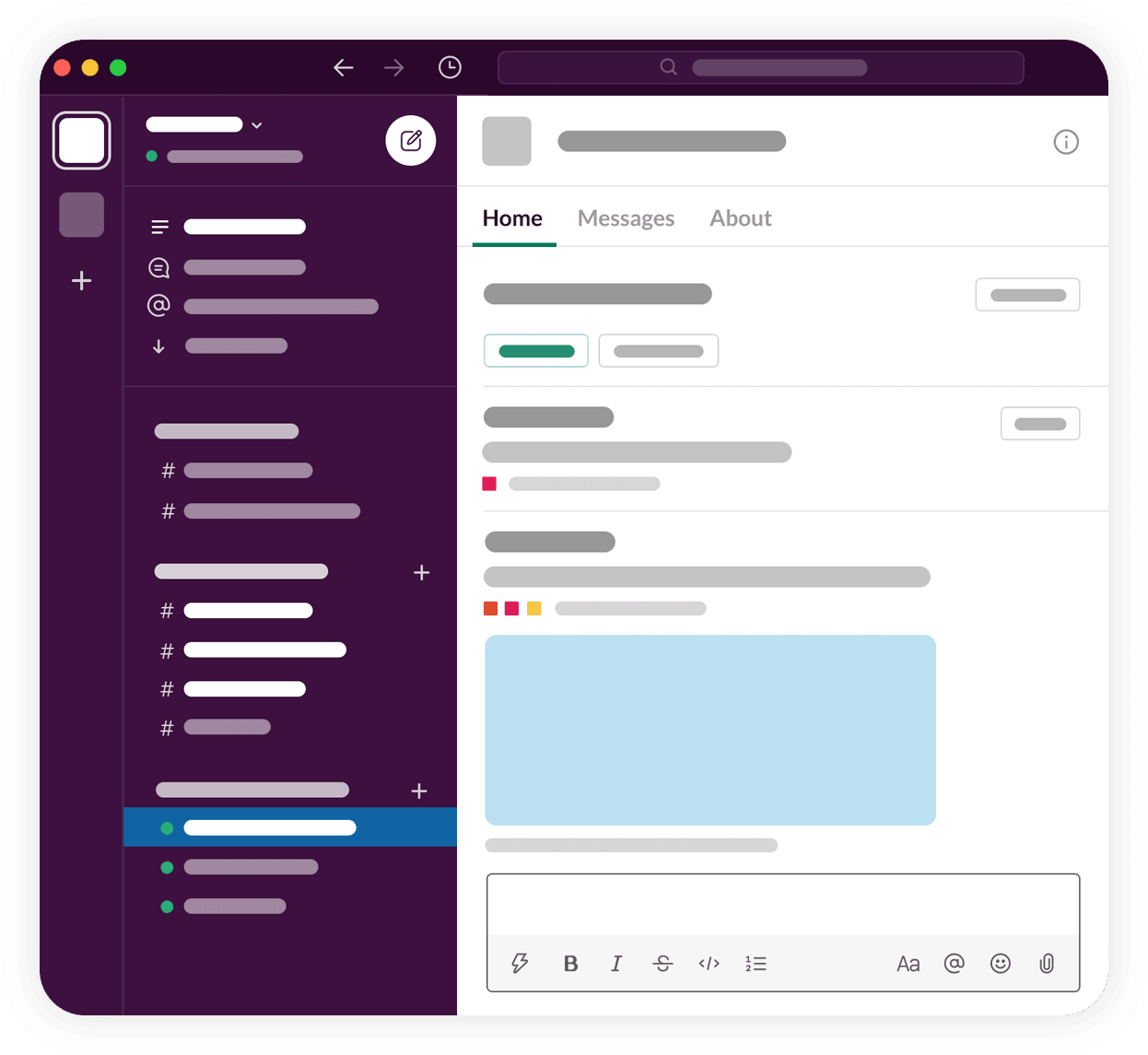
➡️ To get started with App Home, read our App Home guide.
Canvases
Canvases are built-in documents in Slack, existing either tied to a channel or as a standalone space.
Use canvases to store channel guidelines or instructions, welcome new team members with an onboarding flow, or present project updates with canvases. Add links to team resources, helpful videos, and even kick off a workflow from a canvas.
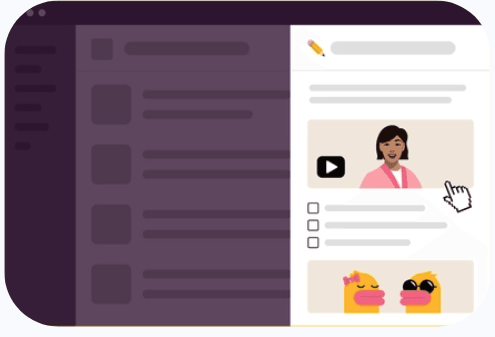
➡️ To get started with canvases, read our Canvas guide.
Lists
Lists help you organize and collaborate on work happening in Slack.
Use Lists to manage tasks, check the status of project work, and more.
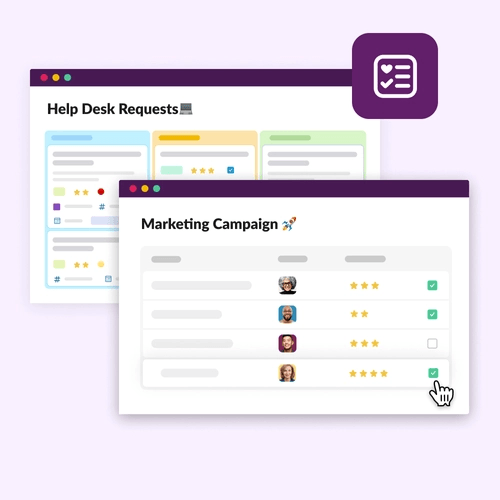
➡️ To get started with Lists, read our Lists guide.
Messages
App-published messages are dynamic yet transient spaces. They allow users to complete workflows as Slack conversations.
Apps can send messages whenever they want to, as long as they have the relevant permissions and access. Our guide to formatting text for app surfaces will show you what formatting is possible.
When an app is invoked, it can respond with a message. Further action can flow from that message, forming a conversational interface connected to any of Slack's features.
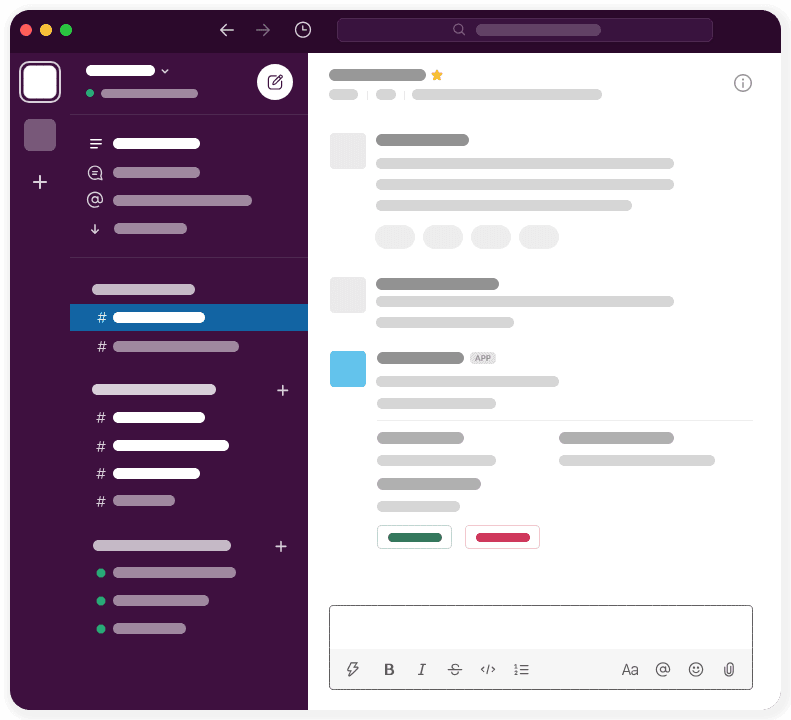
➡️ To get started with messages, read our Messages guide.
✨ To level up your messages with interactive components such as buttons and select menus, read our Creating interactive messages guide for traditional Slack apps or apps created with the Deno Slack SDK.
Modals
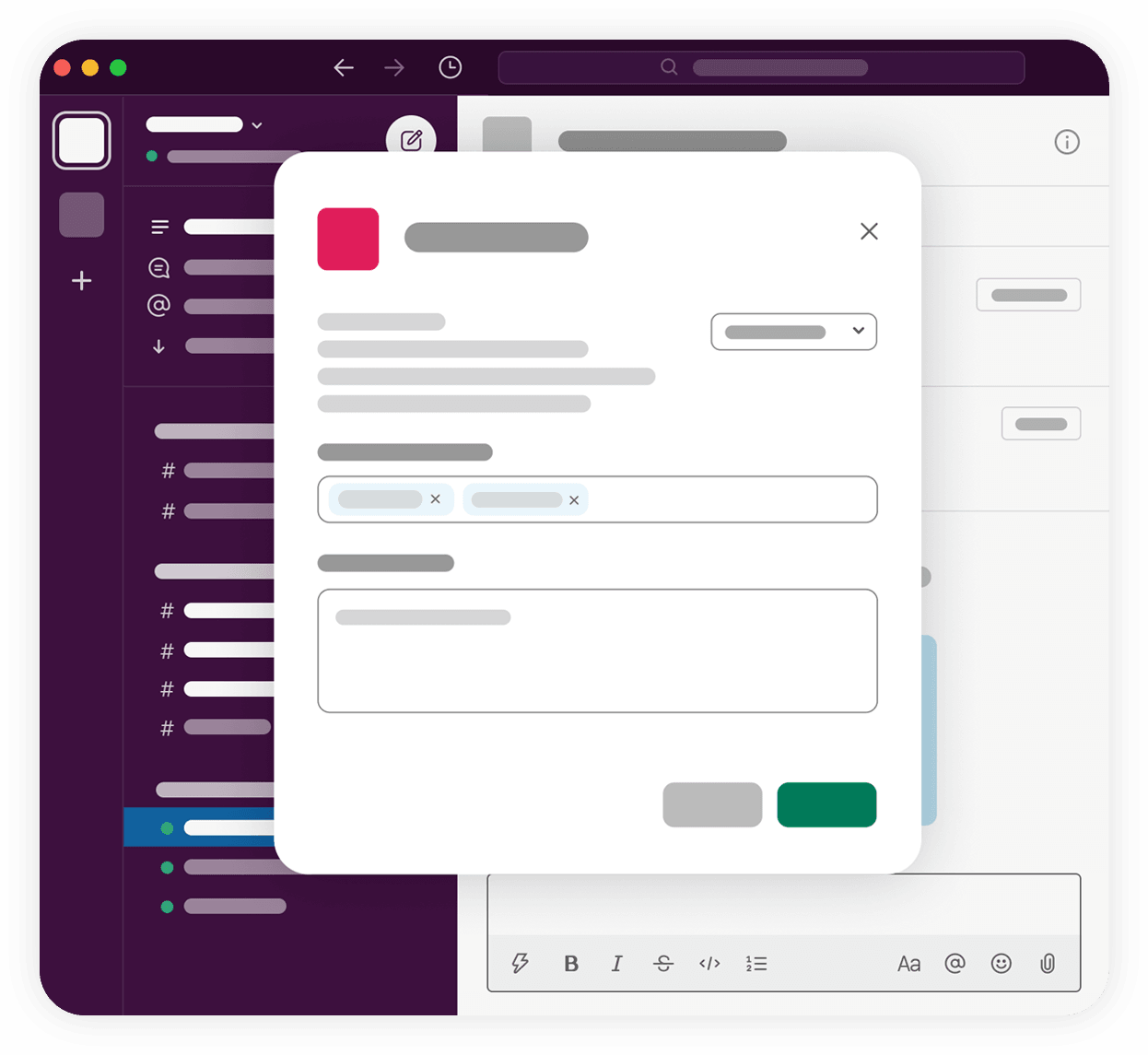
Modals are prominent and pervasive spaces ideal for requesting and collecting data from users, or temporarily displaying dynamic and interactive information.
Modals appear in front of any other interface element in Slack. As a result, they are short-lived and invoked only when a specific task is to be completed. Apps can only create modals in response to user invocation, such as a shortcut.
Modals contain one to three views that can be chained together to create complex, non-linear workflows.
➡️ To get started with modals, read our Modals guide.
Split view
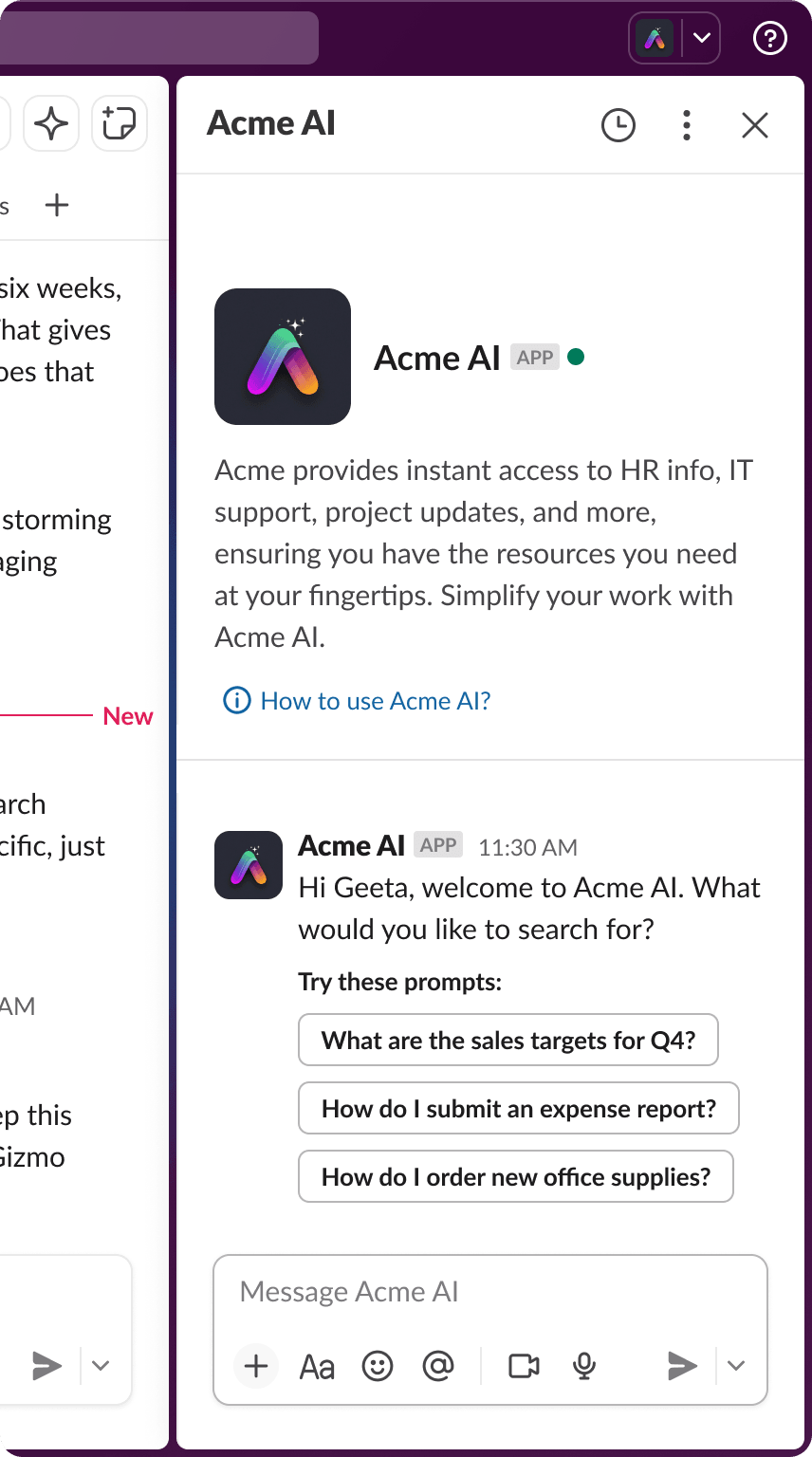
When the Agents feature is enabled in your app settings, the top nav entry point and agent container are available.
The native split pane in the Slack client is accessible from the top bar. Use it for conversational agent interactions: back-and-forth dialogue, multi-turn reasoning, and contextual responses. Interactions here can be implemented using the Bolt Assistant class.
The Bolt Assistant class wraps related API events into handler callbacks, providing a single lifecycle for the agent container. Read more about setting suggested prompts and user interactions in Developing agents.
➡️ To get started with split view, read our Split view guide.
Using app surfaces together
App surfaces can also be used together to create a rich interactive experience for your users. For example, imagine the following Task App, which presents a task dashboard that resides in the app's Home tab:
- A user can click a button to add a task.
- The user is then presented with a modal to enter some plain text and select from a list of categories.
- Upon submitting, a message is sent to a triage channel elsewhere in Slack.
- Finally, a different user in the triage channel can click a button to claim that task.
Explore all the possibilities and get some tips and inspiration by reading our guides to planning Slack apps.